
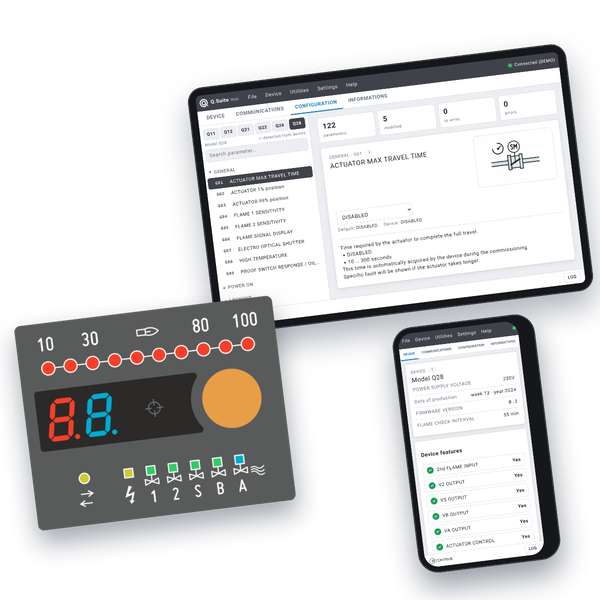

CONFIGURATION AND COMMISSIONING TOOL
Runs in your browser: nothing to download.
Install it as an app and use it even offline.
Q.Suite Web is the browser version of Q.Suite, the free software tool for burner management systems based on the Q1 and Q2 burner control units, suitable for:
• Reading and writing of configuration parameters
• Reading of operating statistical data
• Management of commissioning operations
• Calculation of times for Valve Proving System
Configuration can be saved and retrieved from file. The interface is available in Italian, English, German, Spanish and French, with light and dark themes, and adapts to PC, tablet and smartphone screens.
| DEVICE | |
|---|---|
THIS TAB SHOWS INFORMATION ABOUT THE DEVICE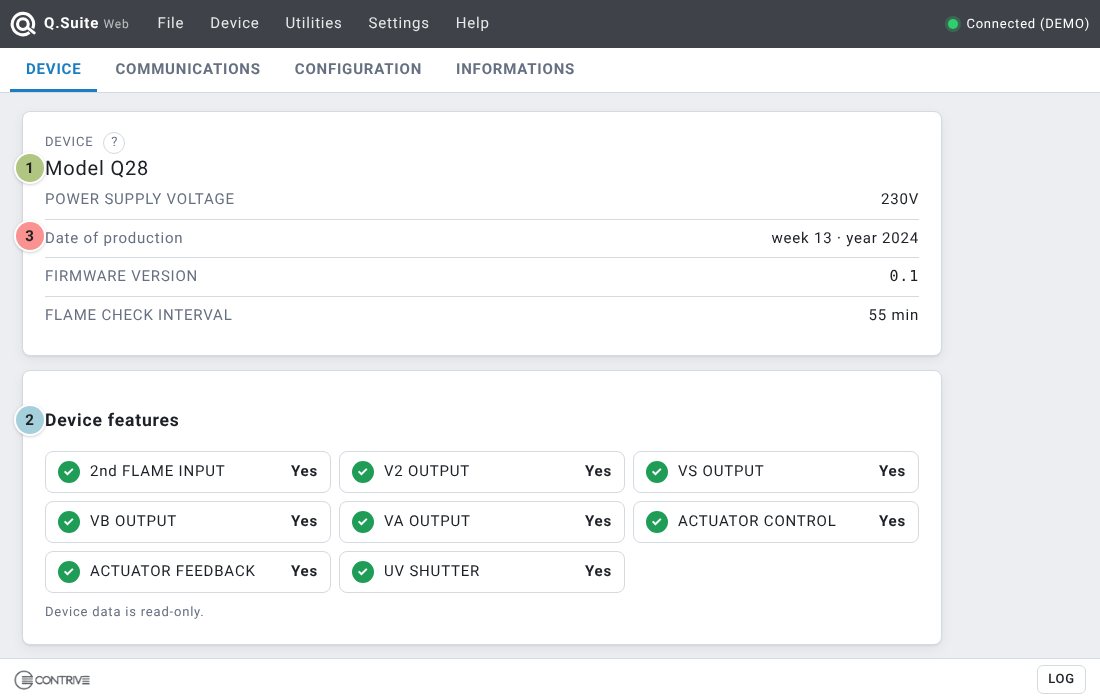
|
|
| 1 |
DEVICE TYPE If the data was retrieved from a device, the model is shown at the top and highlighted in the Configuration tab. When using Q.Suite Web to create a new device configuration, you can select the model in the Configuration tab by clicking the corresponding box. |
| 2 |
FEATURES The functions available for the device are listed in this area. |
| 3 |
DEVICE DATA If the data has been retrieved from a device, this area shows the power supply voltage, the production data, the firmware version and the flame check interval of the linked unit. Device data is read-only. |
| COMMUNICATIONS | |
|---|---|
THIS TAB SHOWS THE DEVICE COMMUNICATION OPTIONS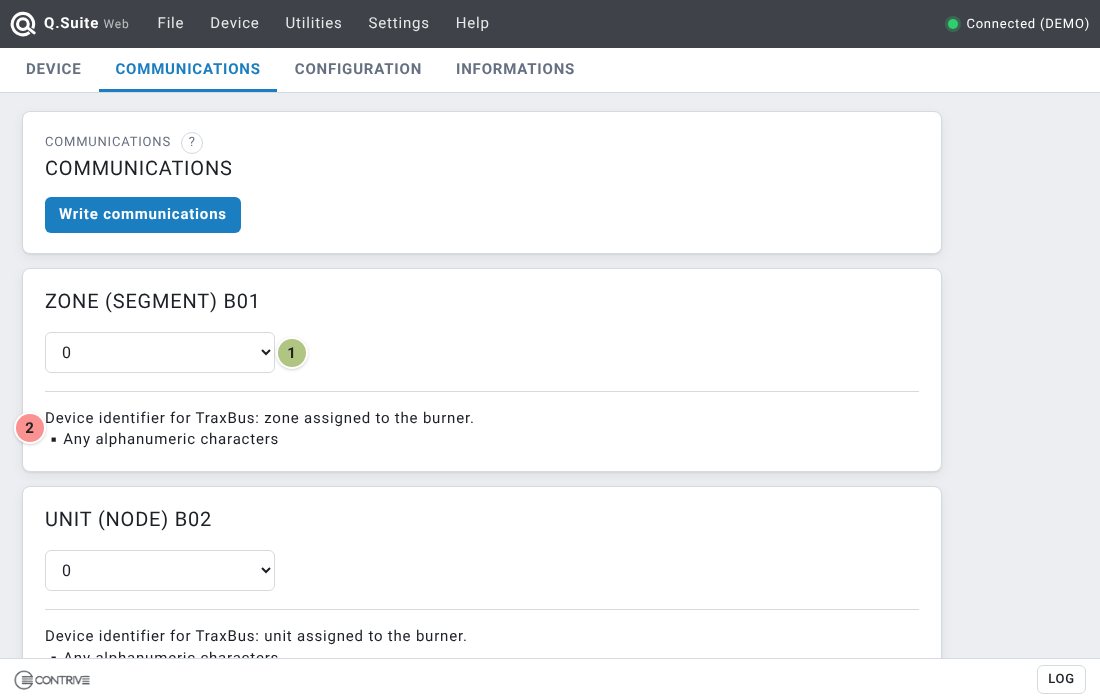
|
|
| 1 |
PARAMETER VALUE Select the value of each communication parameter. Changes are sent to the device with the Write communications button. |
| 2 |
PARAMETER OPTIONS Under each parameter is the information relating to it and the options available. |
| CONFIGURATION | |
|---|---|
THIS TAB SHOWS THE DEVICE CONFIGURATION OPTIONS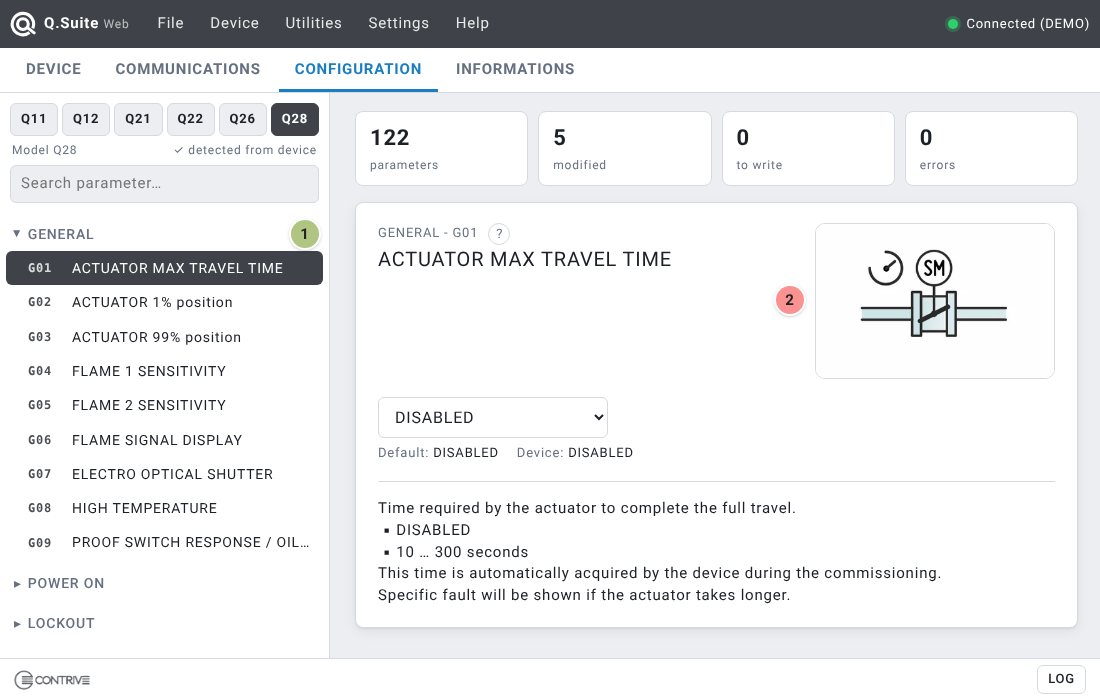
|
|
| 1 |
STAGES TREE VIEW On the left is the list of all operating stages, click on a stage to expand the view and show the parameters relating to it. Use the search box to find a parameter by code or name. After expanding the view, click on a parameter to view related options. |
| 2 |
PARAMETER OPTIONS On the right is the information relating to the selected parameter, with the possibility of selecting your preference. The summary at the top shows how many parameters have been modified, are waiting to be written or contain errors. |
| INFORMATION • GENERAL | |
|---|---|
THIS TAB SHOWS THE OPERATIONAL STATISTICAL DATA: GENERAL, VALVES AND HISTORY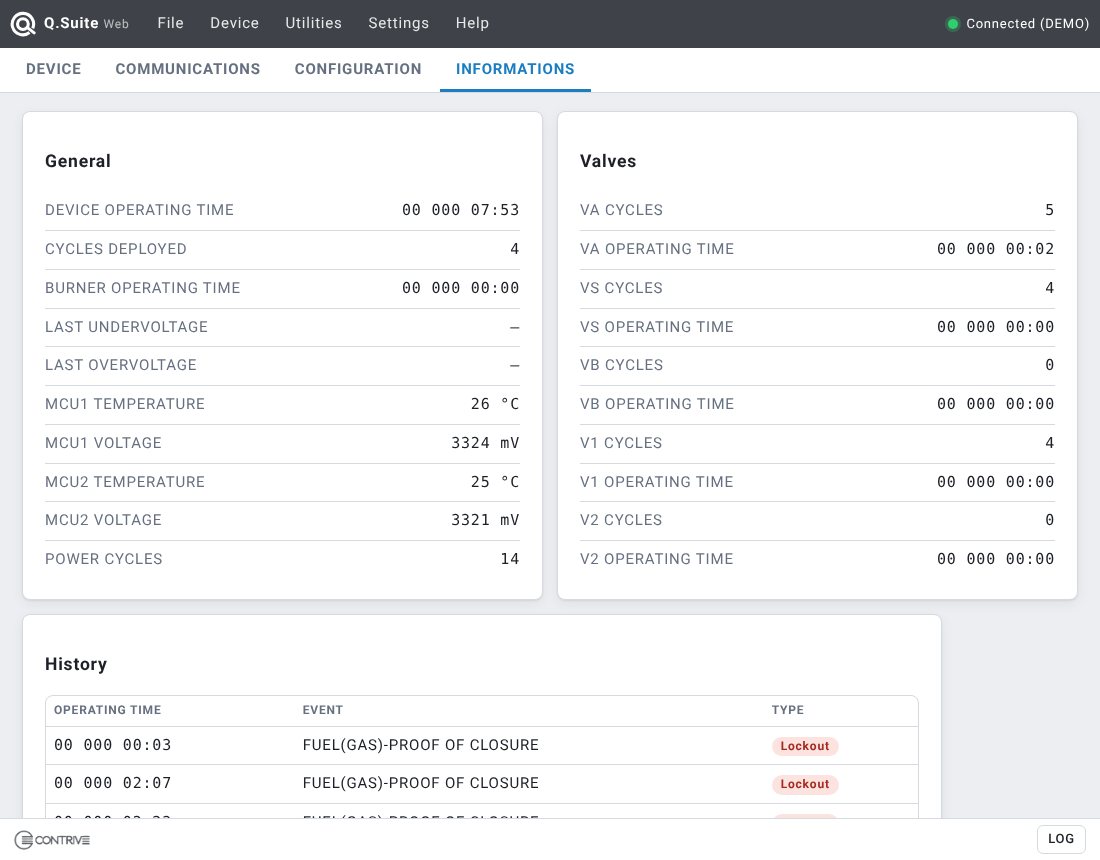
|
|
|
DEVICE OPERATING TIME THE TOTAL TIME THE DEVICE HAS BEEN OPERATIONAL (POWERED ON) - YY DDD hh:mm |
|
|
CYCLES DEPLOYED THE TOTAL NUMBER OF IGNITION CYCLES PERFORMED BY THE DEVICE |
|
|
BURNER OPERATING TIME THE TOTAL TIME DURING WHICH THE BURNER HAS BEEN OPERATING |
|
|
LAST UNDERVOLTAGE LAST DEVIATION FROM THE NOMINAL VOLTAGE GREATER THAN -15% (IF ANY) |
|
|
LAST OVERVOLTAGE LAST DEVIATION FROM THE NOMINAL VOLTAGE GREATER THAN +10% (IF ANY) |
|
|
MCU1 TEMPERATURE CURRENT TEMPERATURE OF MICROCONTROLLER 1 (-25...85°C) |
|
|
MCU1 VOLTAGE CURRENT POWER SUPPLY VOLTAGE OF MICROCONTROLLER 1 (3000...3500mV) |
|
|
MCU2 TEMPERATURE CURRENT TEMPERATURE OF MICROCONTROLLER 2 (-25...85°C) |
|
|
MCU2 VOLTAGE CURRENT POWER SUPPLY VOLTAGE OF MICROCONTROLLER 2 (3000...3500mV) |
|
|
POWER CYCLES THE TOTAL NUMBER OF TIMES THE DEVICE HAS BEEN TURNED ON |
|
| INFORMATION • VALVES | |
|---|---|
|
THIS TAB SHOWS THE OPERATIONAL STATISTICAL DATA: GENERAL, VALVES AND HISTORY
|
|
|
VA CYCLES THE TOTAL NUMBER OF TIMES THE AIR VALVE HAS BEEN TURNED ON |
|
|
VA OPERATING TIME THE TOTAL WORKING TIME OF THE AIR VALVE - YY DDD hh:mm |
|
|
VS CYCLES THE TOTAL NUMBER OF TIMES THE FUEL SAFETY VALVE HAS BEEN TURNED ON |
|
|
VS OPERATING TIME THE TOTAL WORKING TIME OF THE FUEL SAFETY VALVE - YY DDD hh:mm |
|
|
VB CYCLES THE TOTAL NUMBER OF TIMES THE MULTIFUNCTION BYPASS VALVE HAS BEEN TURNED ON |
|
|
VB OPERATING TIME THE TOTAL WORKING TIME OF THE MULTIFUNCTION BYPASS VALVE - YY DDD hh:mm |
|
|
V1 CYCLES THE TOTAL NUMBER OF TIMES THE V1 (PILOT) VALVE HAS BEEN TURNED ON |
|
|
V1 OPERATING TIME THE TOTAL WORKING TIME OF THE V1 (PILOT) VALVE - YY DDD hh:mm |
|
|
V2 CYCLES THE TOTAL NUMBER OF TIMES THE V2 (MAIN) VALVE HAS BEEN TURNED ON |
|
|
V2 OPERATING TIME THE TOTAL WORKING TIME OF THE V2 (MAIN) VALVE - YY DDD hh:mm |
|
| INFORMATION • HISTORY | |
|---|---|
| The History card contains the list of the last 39 lockouts or faults that have occurred and the time at which they occurred (referred to the device's operating time). Hover over a time to see how it is expressed (years, days, hours:minutes). | |
Additional tools available selecting Utilities from the main menu.
| COMMISSIONING | |
|---|---|
|
The device can be controlled interactively to facilitate COMMISSIONING operations Enter the first 4 characters of the password [1] and click ENTER. 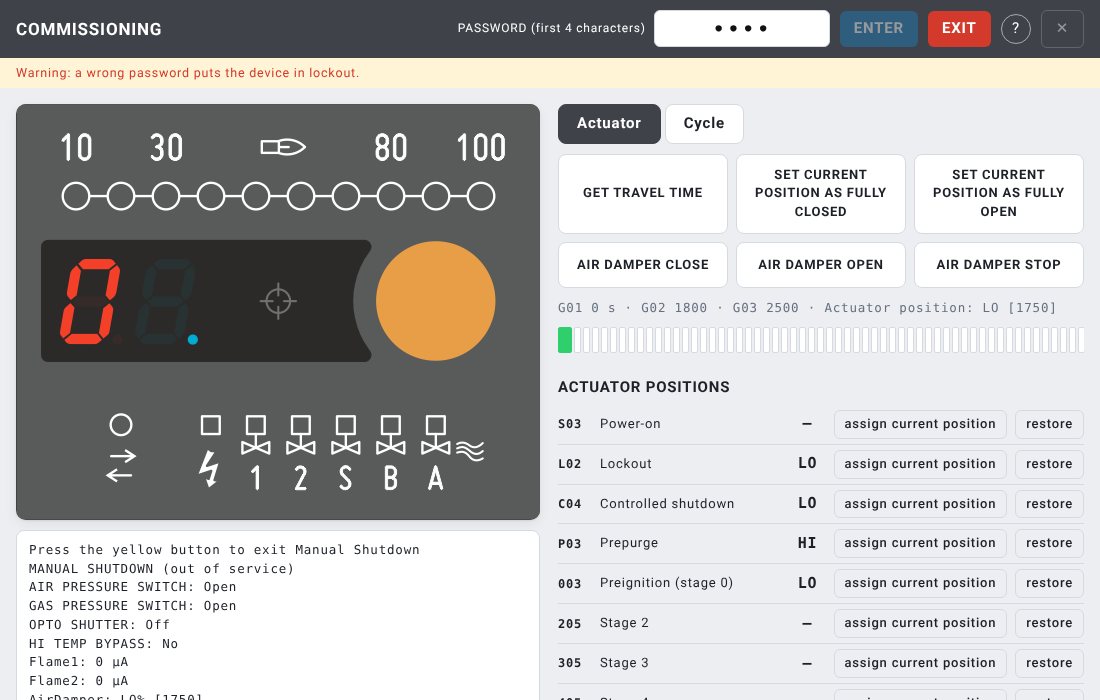
|
|
| In the ACTUATOR tab you can acquire the characteristics of the servomotor and control its position manually, possibly assigning predefined positions in the various stages. | |
|
|
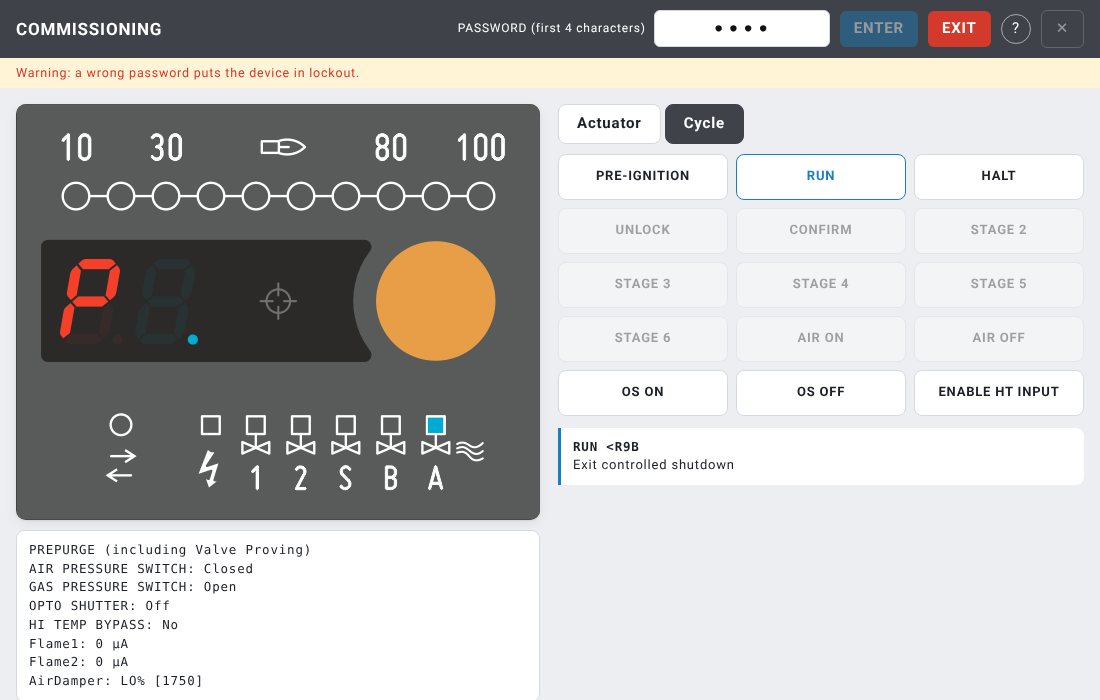
| In the CYCLE tab you can start, stop and advance the operating cycle manually to conveniently carry out the burner setup operations. The buttons are enabled according to the current stage and to the configuration of the device: for example, the AIR ON / AIR OFF buttons are active only if the air valve of that stage is set to remote control. | |
| VALVE PROVING SYSTEM | |
|---|---|
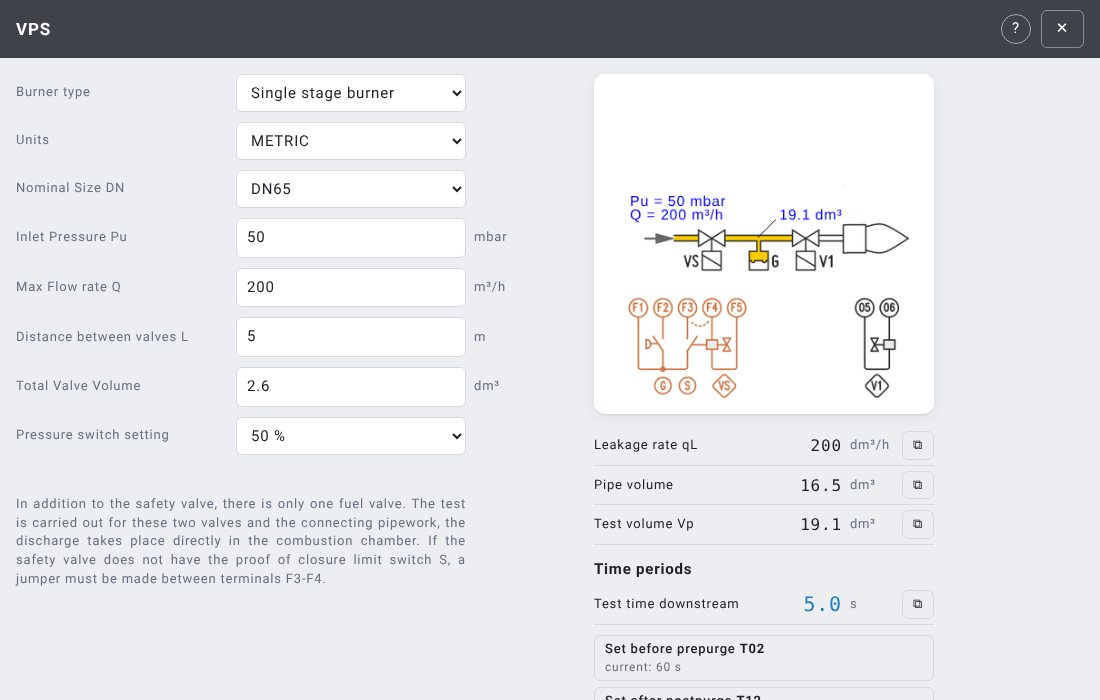
Utility that simplifies the calculation of test time for VPS: it is possible to select 4 different pipework configurations. The calculated times can be copied or applied directly to the related parameters.
|
Q.Suite Web needs nothing to be downloaded: open it from the link and start working. For daily use you can install it as an application.
|
INSTALL AS AN APP In Chrome or Edge choose Help › Install app (or use the install icon in the address bar). The app opens in its own window, without the address bar, with an icon on the desktop. |
|
OFFLINE USE After the installation Q.Suite Web also works without Internet, for example on a PC at the plant. Updates are downloaded automatically when a connection is available. |
|
CONNECTING THE DEVICE Connect the device with the Configuration – Optical jack (QLINK). On PC the connection uses the browser serial port (Web Serial), on Android WebUSB. The browser asks for permission to access the port. |
|
TABLET AND SMARTPHONE The interface adapts to the size of the screen. On Android use Google Chrome with a USB OTG connection. |
|
DEMO MODE Add ?demo to the address, or use the DEMO link in this page, to try Q.Suite Web with a simulated device, without any hardware. |
|
Device connection requires Google Chrome or Microsoft Edge. Firefox and Safari do not support it. |