|
WiFi
|
|
Qio has a WiFi radio interface through which it can be remotely controlled by connecting to an existing network or creating its own.
To activate and configure WiFi proceed as follows:
Connect Qio to a Personal Computer via the USB interface [3]
Open a browser (Chrome or Edge) and go to the page https://www.contrive.mobi/QIO/
|
|
|
|
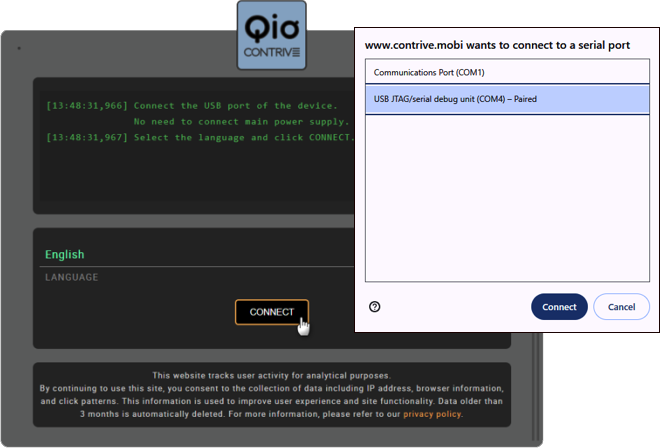
Click on the CONNECT button, in the pop-up window select the USB port to which Qio is connected and then Connect
|
|
Connect to an existing WiFi network:
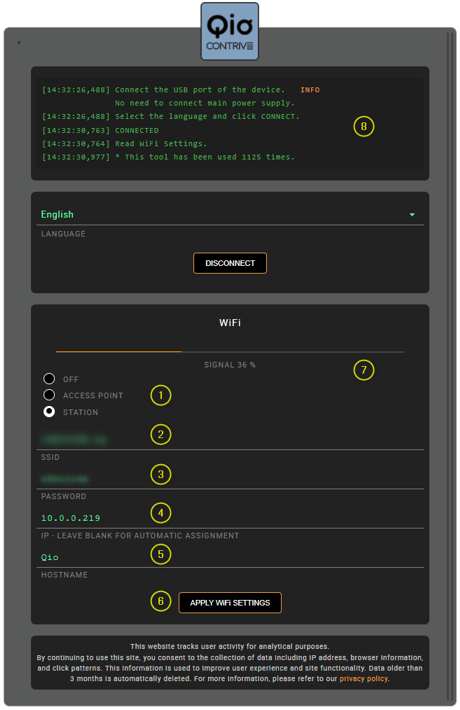
- Select STATION mode
- Enter the SSID network name
- Enter the SSID access password
- Enter the IP address you want to assign to Qio, leave blank for automatic DHCP assignment
- Give Qio a name
- Press APPLY WIFI SETTINGS and wait for Qio to complete registration in the WiFi network.
- If the connection was successful, the WIFI STATUS led on the board blinks slowly, the SIGNAL strength is shown, the assigned IP address will also be shown
- The top panel shows the details of the activities
|
|
|
If you want Qio to create its own SSID network (like a WiFi hotspot):
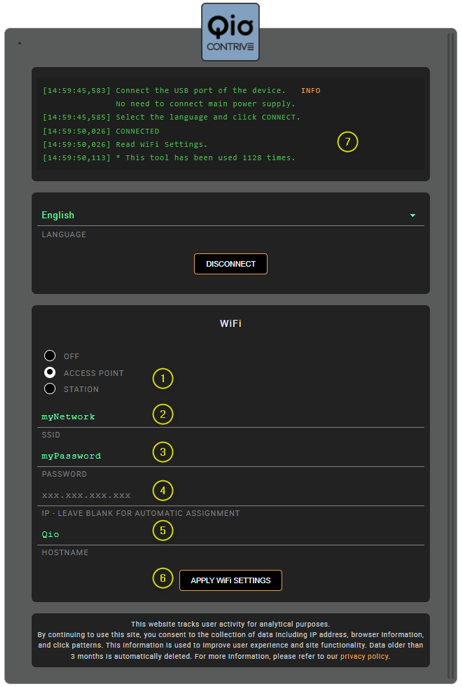
- Select ACCESS POINT mode
- Name the SSID you want to create
- Set a password for SSID
- You can set the IP address, if you leave it blank the default 192.168.1.1 will be assigned
- Give Qio a name
- Press APPLY WIFI SETTINGS to activate the WiFi network: the WIFI STATUS led will light up steadily
- The top panel shows the details of the activities
|
|